 Instructions
For Using TNC-X with pre-Version 3 USB Modules
Instructions
For Using TNC-X with pre-Version 3 USB ModulesInstructions
For Using TNC-X with pre-Version 3 USB Modules
Windows XP Version
For information on Using the Module with Apple or Linux Click here
For information on Using the Module with Windows 98/ME Click here.
A Note for all USB module users:
The KISS mode protocol specifies that no flow control be used (either hardware or software). However, some software that supports KISS mode tries to implement hardware flow control (WinTNC is one example). To accomodate this, it may be necessary to connect the RTS and CTS lines of the DLP-USB module together in order for it to work with some software. The procedure for doing this if you are using TNC-X's native serial port is described in the TNC-X manual. However, if you are using the DLP-USB module, this can be accomplished simply by shorting pins 21 and 22 of the DLP-USB socket. If you find that you are using the USB port and the unit receives fine but never transmits, jumpering these pins will probably solve your problem.
Installation on Windows XP Systems
Download the zip file containing the drivers:
Windows Drivers for TNC-X USB Module (all versions of Windows)
Create a subdirectory on your computer for the files in this archive and extract the files from the ZIP archive to that subdirectory.
Plug the DLP
USB module into your TNC-X. The USB socket where your USB cable attaches should
be oriented toward the edge (outside) of the TNC-X PC board. If you have the
jumpers set correctly for TNC-X operation (see TNC-X manual) the power LED on
TNC-X should light. Also you should see a window pop up on your computer that
looks like this:
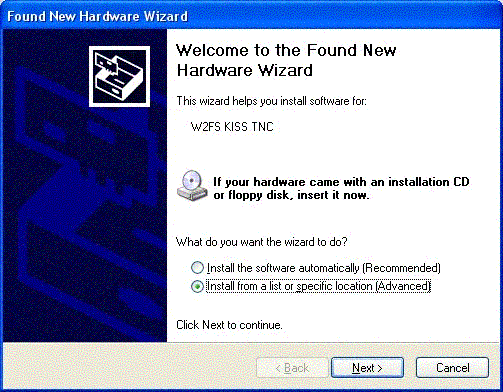
Make sure you pick the second choice ("Install from a list or specific location (Advanced)"). This is not the default choice. Then push the Next button. The following screen will appear.
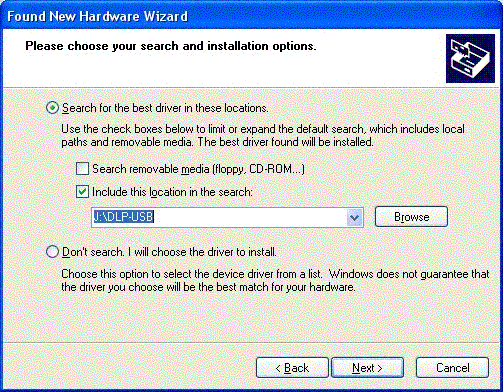
Push the "Browse" button and find the directory that contains your drivers. Then press the next button. The following screen will appear:
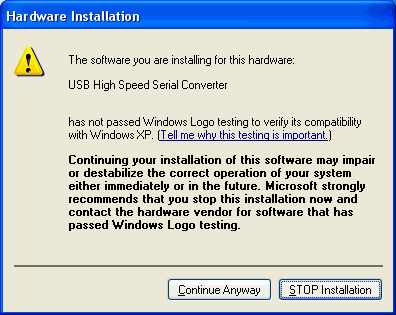
Press the "continue anyway" button. After a few seconds you will see the following screen.
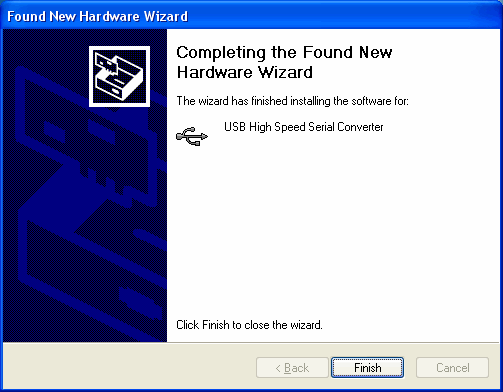
Now just push the "Finish" button. Your DLP-USB232M module has now been installed. However, since it is going to appear on your computer as a serial port, the process will be repeated to install the serial port that will be used. The screens will look almost identical to the four screens that you saw when you did the DLP installation. Make the same choices and fill in the same installation directory and all should be well.
This may not cause your DLP USB module to appear on the COM port that you prefer, however. This can be adjust after installation. Go to the device manager by right clicking "My Computer ", selecting "properties", selecting the "hardware" tab and then pushing the "device manager" button. Select the "Ports" item from the list and you should see an entry for "USB Serial Port" with a notation of which COM Port it is currently occupying:
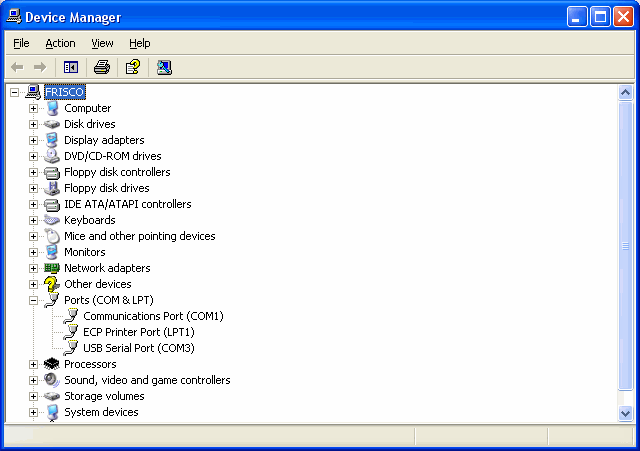
Double click on this entry and it will bring up a properties page. Select the "Port Settings" tab, and then push the "Advanced" button.
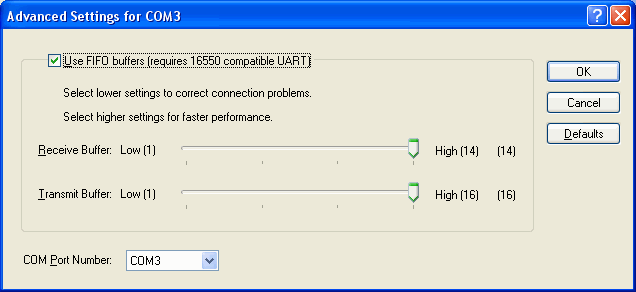
This screen will allow you to adjust the USB module to the COM port of your own choosing. Be careful not to select a COM port that is already in use!